
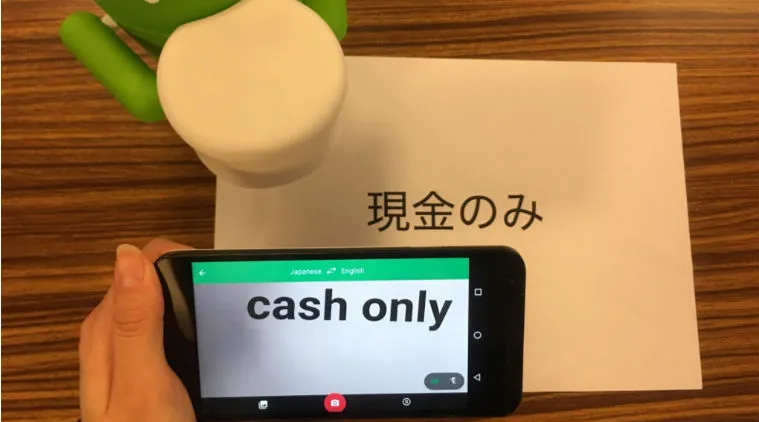
Travelers and language learners often face the challenge of understanding Japanese signs, menus, or documents on the spot. With a smartphone camera, anyone can instantly translate Japanese text into their own language in seconds. This simple tool removes the need to type out unfamiliar characters and makes navigating daily life much easier.
The process is straightforward. By pointing the camera at printed text, the phone scans the characters, converts them into digital text, and displays the translation on screen. This works well for street signs, restaurant menus, product labels, and even handwritten notes in some cases.
As more apps now include offline language packs and extra features, people can use camera translation almost anywhere without worrying about internet access. This makes it a practical solution for travel, study, or everyday communication.
How Instant Camera Translation Works on Smartphones
Smartphone camera translation works by detecting text in an image, recognizing the characters, and then converting them into another language. The process depends on text recognition technology and translation systems that can handle different writing styles, including Japanese characters.
Understanding Optical Character Recognition (OCR)
Optical Character Recognition (OCR) is the first step in translating text through a camera. The software scans the image, identifies text areas, and converts the shapes of characters into digital text. This is especially important for Japanese, which includes kanji, hiragana, and katakana.
OCR accuracy depends on factors such as lighting, font style, and image clarity. For example, handwritten notes or stylized fonts may be harder to process than printed signs or menus.
Once the text is recognized, it can be passed to a translation engine. Many learners also cross-check translations with a list of highly authentic Japanese translators to confirm accuracy and better understand context. This step helps when OCR misreads complex kanji or when a phrase has multiple meanings.
Real-Time Translation vs. Photo Translation
Smartphone apps usually offer two modes: real-time translation and photo translation.
- Real-time translation uses the live camera feed. The translated text appears directly on the screen, replacing the original characters. This is useful for reading signs, menus, or product labels without taking a picture.
- Photo translation requires the user to capture an image. The app then processes the photo, recognizes the text, and provides a translation. This method often gives more accurate results since the system has more time to analyze the text.
Real-time translation is faster but may struggle with small or unclear text. Photo translation is slower but often provides better accuracy for complex Japanese writing. Many people use both modes depending on the situation.
Supported Devices and Compatibility
Most modern smartphones support camera translation, but performance can vary. Devices with better cameras and faster processors usually provide smoother translations. Older phones may experience delays or lower accuracy in real-time translation.
Both iOS and Android platforms support apps with camera translation features. Some apps allow offline use, while others need an internet connection for accurate results. Offline use is helpful when traveling without stable mobile data.
Compatibility also depends on language support. Japanese is widely supported across major translation apps, making it accessible for travelers, students, and professionals. Users should check which features are free and which require a paid upgrade before relying on them.
Best Apps and Features for Translating Japanese Text Instantly
Smartphone apps can quickly translate Japanese text through the camera, voice input, or stored history. Some tools focus on instant image recognition, while others give extra features like offline use, saved translations, or speech-to-text support. Choosing the right mix of functions depends on how someone plans to use the translation in daily life or travel.
Using Google Translate App and Google Lens
The Google Translate app is one of the most common tools for translating Japanese text instantly. By pointing the camera at menus, signs, or documents, the app overlays the translation on the screen in real time. This makes it practical for travelers who need quick answers without typing anything.
Google Lens, which works with the app, adds more flexibility. It lets users scan printed text, highlight specific words, and copy translations directly into notes or messages. This is helpful when someone wants to save only part of the text instead of the full page.
Another advantage is offline translation. Users can download Japanese language packs before traveling. Even without internet access, the camera translation still works, although accuracy may drop slightly compared to online use.
Microsoft Translator and Alternative Apps
Microsoft Translator also supports camera-based translation of Japanese text. It allows users to scan printed material and see the translation on screen. While similar to Google Translate, it has a cleaner interface for group conversations and supports multi-person chats with automatic translation.
The app also works offline after downloading the Japanese pack. This is useful for travelers in places with weak connections. Users can switch between text, camera, and voice modes without leaving the main screen, which makes it simple to use.
Other translation apps focus on Asian languages and may offer better recognition of kanji characters. Some provide handwriting input, letting users draw a character on the screen for instant recognition. These features can be helpful for learners who want more than just quick translations.
Saving and Managing Your Translation History
Many translation apps allow users to save past translations for later use. In the Google Translate app, each translation can be starred and added to a personal phrasebook. This makes it easy to revisit common phrases such as greetings, directions, or food terms.
Microsoft Translator also stores past translations in a history tab. Users can scroll back to find previous camera scans or typed entries. This is particularly useful when traveling, since the same words often reappear in menus, maps, or signs.
Some apps even allow exporting saved translations. For example, users can copy them into notes or share them with others. Keeping a personal record of translations helps reduce repeated scanning and speeds up communication.
Voice and Audio Translation Capabilities
Camera translation is useful for text, but many apps also support voice translation. This feature lets users speak into the phone and hear the Japanese translation spoken back. It works both ways, so Japanese speakers can also talk into the app and get instant translations.
The Google Translate app offers a conversation mode where two people can speak back and forth with automatic detection of each language. This reduces the need to switch settings during a discussion.
Microsoft Translator provides similar voice features and even supports group conversations. Each participant can join using a code, and the app translates spoken phrases for everyone. This makes it practical for small meetings or casual chats where multiple languages are present.
Voice translation is not always perfect, especially in noisy places, but it can be a faster option than typing or scanning text when dealing with spoken communication.
Conclusion
Using a smartphone camera to translate Japanese text gives people a fast and simple way to understand signs, menus, and documents. It saves time by removing the need to type words manually.
The process works best with clear printed text, steady hands, and good lighting. These small steps improve the accuracy of translations and reduce errors.
While not perfect for complex language or cultural nuances, camera translation offers practical support for everyday situations. It helps travelers, students, and readers interact with Japanese text more confidently.