
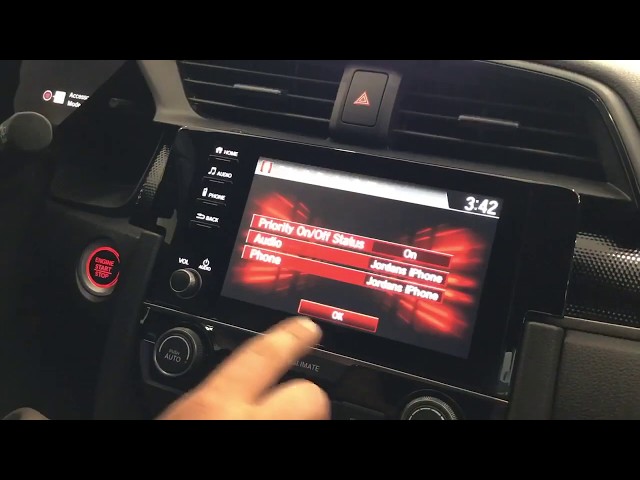
The 2016 Honda Civic is a popular compact sedan known for its reliable performance, modern design, and well-integrated technology. One of the most convenient features is its built-in Bluetooth system, which allows drivers to make hands-free calls, stream music, and access other smartphone features without taking their eyes off the road.
If you’ve just bought a 2016 Civic or are trying to reconnect your phone, this guide will walk you through the exact steps on how to connect Bluetooth in a Honda Civic 2016. The process is quick, easy, and takes less than five minutes.
Why Bluetooth Connectivity Matters
Bluetooth offers multiple benefits for Honda Civic drivers:
-
Hands-Free Calling: Make and receive calls safely while driving.
-
Audio Streaming: Play music, podcasts, or navigation audio directly from your phone.
-
Voice Commands: Use voice assistants like Siri or Google Assistant without touching your phone.
-
Wireless Convenience: Say goodbye to tangled aux cables.
Let’s walk through the setup process.
Step-by-Step: How to Connect Bluetooth in Honda Civic 2016
Before starting, ensure your vehicle is in Park (P) and that both the vehicle and your smartphone are powered on.
Step 1: Enable Bluetooth on Your Phone
-
Go to your phone’s Settings
-
Tap on Bluetooth
-
Toggle it to On
-
Make sure your phone is discoverable (visible to nearby devices)
Step 2: Access the Honda Civic’s Touchscreen
-
Turn on your vehicle’s ignition
-
Press the Home button on the infotainment screen
-
Select Phone from the menu
-
If no phone is connected, the system will prompt: “No phone has been paired. Would you like to add a phone now?”
-
Select Yes
Step 3: Search and Pair the Device
-
On your infotainment screen, select Bluetooth Device List
-
On your phone, under available devices, look for “HandsFreeLink” or “Honda Civic”
-
Tap to connect
Step 4: Confirm the Pairing Code
-
A 6-digit code will appear on both your infotainment screen and phone
-
Make sure the numbers match
-
Tap Pair on your phone and Yes on the car screen
Step 5: Enable Access
-
You may be asked to allow access to your contacts and call history
-
Tap Allow or Yes to sync your phonebook
You’re now connected. The Civic will confirm the connection and your phone’s name will appear on the screen.
Troubleshooting Tips
If you’re having trouble connecting your phone via Bluetooth, try the following:
| Issue | Solution |
|---|---|
| Phone not found by Civic | Ensure Bluetooth is on and phone is discoverable |
| Incorrect pairing code | Cancel and retry the pairing process |
| Audio not playing through car | Change media source to Bluetooth Audio on the screen |
| Call audio not working | Enable Bluetooth call audio in your phone settings |
| Can’t reconnect automatically | Set the device as a Priority Device in the car |
If problems persist, restarting your phone and vehicle system often resolves minor glitches.
Compatible Phone Features via Bluetooth
Once your device is connected, here’s what you can do directly through the Honda Civic’s Bluetooth system:
-
Make/receive calls
-
Access recent call logs
-
Stream music from apps like Spotify, Apple Music, and YouTube Music
-
Use voice commands
-
Send/receive text messages (varies by phone model)
Note: The responsiveness and features available may differ depending on your smartphone’s operating system and Bluetooth version.
Can You Connect More Than One Device?
Yes. The 2016 Honda Civic allows you to pair multiple devices but can connect to only one at a time for hands-free use. You can switch between paired devices in the Bluetooth settings menu.
To switch:
-
Tap Phone on the home screen.
-
Select Bluetooth Device List.
-
Choose the phone you want to connect.
-
Tap Connect.
Keeping Your Connection Secure
Bluetooth is generally safe, but consider these practices:
-
Only pair with trusted devices.
-
Always confirm the matching code before pairing.
-
Remove unknown or outdated devices from your Bluetooth list to prevent interference.
Bluetooth vs. USB: Which Is Better?
| Feature | Bluetooth | USB |
|---|---|---|
| Wireless | Yes | No |
| Audio Quality | Slightly compressed | Higher-quality audio |
| Charging Capability | No | Yes |
| App Integration | Basic | Advanced with Apple CarPlay/Android Auto |
If you’re looking for better audio quality and full smartphone integration, a USB connection via Apple CarPlay or Android Auto may be a better choice. However, for quick, hands-free operation, Bluetooth remains the most convenient.
Keyword Integration
Improving your driving experience goes beyond tech connectivity. Just as learning how to connect Bluetooth in a Honda Civic 2016 enhances convenience, knowing How to Improve Fuel Efficiency in Old Cars can significantly cut costs and reduce emissions for aging vehicles.
FAQs: Honda Civic 2016 Bluetooth
Q1: Can I stream music via Bluetooth?
A: Yes, once connected, select Bluetooth Audio from the infotainment menu to play music from your phone.
Q2: Why is my phone not pairing?
A: Make sure your phone is visible, Bluetooth is on, and the Civic’s system is not already connected to another device.
Q3: Can I use Bluetooth while driving?
A: Absolutely. You can make calls and stream audio hands-free for safer driving.
Q4: How many devices can I pair?
A: You can pair several devices, but only one can be actively connected at a time.
Q5: Will it automatically reconnect next time?
A: Yes, if the phone’s Bluetooth is on and it was previously paired, the Civic will reconnect automatically.
Final Thoughts
Connecting Bluetooth in your Honda Civic 2016 is a quick and easy process that offers substantial benefits in terms of safety, convenience, and entertainment. Once paired, your smartphone integrates seamlessly with the vehicle’s system, allowing for a distraction-free driving experience.
Take a few minutes to set it up correctly, and you’ll enjoy the full functionality of your infotainment system every time you hit the road.